
Browser Extension
Install the Beav browser extension
Install Beav from the Chrome Web Store, or download the ZIP and load it manually in Chrome or Edge, then verify the local connection.
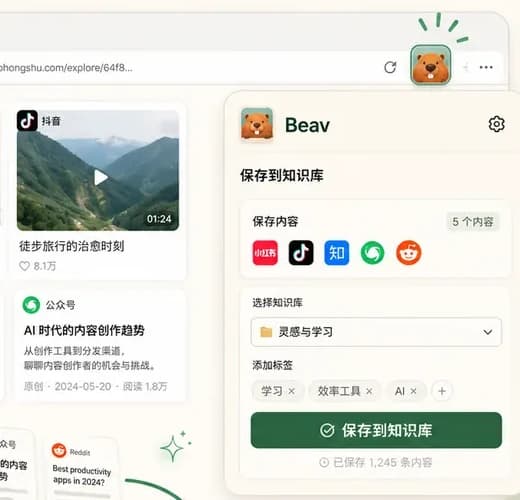
The Beav browser extension can be installed two ways. The Chrome Web Store is recommended: setup is faster and updates are automatic. Use the manual ZIP install when the store is not reachable or when you need to test a local build.
Choose an install method
Install steps (Chrome Web Store)
- Open the Beav browser extension store page.
- Click Add to Chrome in Chrome and confirm the browser prompt.
- Open the same page in Edge; if the browser asks whether to allow extensions from another store, confirm and continue.
- After installation, pin Beav to the browser toolbar.
- Start the Beav desktop app, open a regular web page, and click the Beav icon to open the side panel.
Store-installed builds update automatically in the browser, so you do not need to keep a local extension folder or turn on developer mode.
Download the ZIP for manual install
Manual installation suits environments without access to the Chrome Web Store, or when you need a specific version.
- Go to the Beav download page.
- Click Download ZIP for manual install.
- Extract the ZIP after the download finishes.
- Move the extracted folder to a permanent location that will not be cleaned up or renamed.
- Open the folder and confirm
manifest.jsonis at the top level.
The browser needs to read this folder long term. Do not load it from a temporary download folder, and do not delete the extracted files after installing.
Load it in Chrome
- Open
chrome://extensionsin the address bar. - Turn on developer mode in the top right.
- Click Load unpacked.
- Select the extracted folder that contains
manifest.json. - Confirm the extension list shows the name Beav.
Load it in Edge
- Open
edge://extensionsin the address bar. - Turn on developer mode.
- Click Load unpacked.
- Select the extracted folder that contains
manifest.json. - Confirm the extension list shows the name Beav.
Verify the connection
- Keep the Beav desktop app running.
- Open a regular web page.
- Click the Beav icon to open the side panel.
- Save the current page.
- Back in Beav, confirm the content appears in the knowledge base.
The install only counts as successful once the page saves from the browser and the record shows up in the knowledge base.
Beav is missing after install
First go back to the extensions page and confirm the extension is enabled. Store builds can be reinstalled from the store page. If a manual build reports a folder error, put the files back at the original path, or select the permanent folder containing manifest.json again.
Connection problems: Extension troubleshooting. Upgrading later: Update the extension.